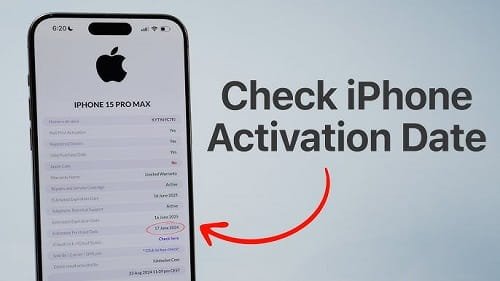
The activation date of an iPhone is the date on which the device was first set up and connected to Apple’s servers — in other words, the day it was turned on and used for the first time. This date is distinct from the manufacturing date and the purchase date, though all three are often close together for brand new devices. For refurbished, second-hand, or gifted iPhones, however, these dates can be significantly different — and knowing the activation date becomes especially important.
Whether you are checking the warranty status of a second-hand iPhone, verifying whether a device was genuinely new when purchased, understanding how long your AppleCare coverage lasts, or simply satisfying your curiosity — the activation date is the key piece of information you need. This guide covers every available method to check your iPhone’s activation date, step by step, through Apple’s official tools and trusted third-party resources.
Why the iPhone Activation Date Matters
The activation date is more useful than most iPhone owners realise:
- Warranty verification: Apple’s standard one-year limited warranty begins from the activation date — not the purchase date. Knowing the activation date tells you exactly when your warranty expires.
- AppleCare+ eligibility: AppleCare+ must be purchased within 60 days of the iPhone’s activation date. If you are unsure whether you are still within this window, checking the activation date is essential.
- Second-hand phone verification: When buying a used iPhone, the activation date reveals whether the phone was genuinely “new” when first used — a large gap between manufacture date and activation date may indicate a refurbished or previously returned device.
- Detecting a fake or reactivated device: If a seller claims an iPhone is brand new but the activation date shows it was activated a year ago, that is a clear red flag.
- Insurance claims: Some phone insurance policies use the activation date as the start of the coverage period — knowing this date helps you verify coverage accurately.
- Resale value assessment: The activation date is a reliable indicator of how long the phone has been in active use — a key factor buyers consider when purchasing second-hand iPhones.
Method 1: Check via Apple’s Official Coverage Check Website (Most Reliable)
Apple’s official warranty and coverage check page is the most authoritative source for your iPhone’s activation date. It pulls data directly from Apple’s servers and provides the activation date alongside your warranty status and AppleCare coverage details.
Steps to Follow:
- Find your iPhone’s serial number. Go to Settings > General > About and look for the “Serial Number” field. Note the exact alphanumeric serial number.
- Open a browser on any device and visit Apple’s official coverage check page: https://checkcoverage.apple.com
- Enter your iPhone’s serial number in the field provided.
- Complete the captcha verification and click “Continue.”
- Apple will display your device’s coverage details — this page includes the “Activation Date” of the device, the warranty expiry date, AppleCare+ status (if applicable), and whether the device is eligible for service.
- Note the activation date displayed — this is the official date recorded by Apple when the device was first set up.
- If you see “Valid Purchase Date not found,” it means Apple does not have the activation date on record — typically for very old or unreported devices. In this case, contact Apple Support directly.
Pro Tip: The Apple coverage check page works for any Apple device — not just iPhone. You can use the same method to check activation dates for iPad, MacBook, Apple Watch, and AirPods using their respective serial numbers.
Method 2: Check via the Apple Support App
The Apple Support app — available for free on the App Store — provides a convenient mobile-friendly way to check your device’s activation date, warranty status, and service history without opening a browser.
Steps to Follow:
- Download the “Apple Support” app from the App Store on your iPhone if it is not already installed.
- Open the app and sign in with your Apple ID — the one associated with your iPhone.
- On the home screen, tap on your iPhone listed under “My Devices” at the top of the page.
- The device details page will show your iPhone model, serial number, iOS version, and coverage information.
- Scroll down to find the “Coverage” section — it will display the activation date, warranty expiry, and whether AppleCare+ is active.
- Tap “See Details” or “Learn More” under the coverage section for a full breakdown of your device’s service eligibility and activation history.
Pro Tip: If you own multiple Apple devices, they will all be listed in the Apple Support app under “My Devices” — you can check the activation date and coverage status of each one from a single place.
Method 3: Check via Your Apple ID Account Page
Your Apple ID account page at appleid.apple.com lists all devices currently or previously signed in with your Apple ID. While it does not always show the activation date directly, it provides device registration details that can help confirm when a device was first associated with your account.
Steps to Follow:
- On your iPhone, go to Settings and tap your name at the very top of the screen to open your Apple ID settings.
- Scroll down to see a list of all devices linked to your Apple ID — tap on your iPhone from the list.
- The device detail screen will show the model name, iOS version, and serial number.
- Tap “Learn More” or navigate to the coverage details — some Apple ID pages redirect to the checkcoverage.apple.com page for the selected device.
- Alternatively, open a browser and visit https://appleid.apple.com, sign in, scroll down to the “Devices” section, click on your iPhone, and look for any activation or warranty information displayed.
- For the most complete activation date information, use the serial number from this page to check on https://checkcoverage.apple.com as described in Method 1.
Note: The Apple ID page is particularly useful if you are checking an iPhone that is no longer in your possession — for example, a device you sold or one you are considering buying. The coverage check page works using just the serial number, with no Apple ID login required.
Method 4: Check Using the iPhone’s Settings — iOS Version and First Setup Date
While iOS does not directly display the activation date in Settings, there are a few indirect clues within the phone itself that can give you a very good estimate of when the device was first activated — particularly useful when you do not have internet access or cannot use the Apple coverage page.
Check the Oldest Photo or File Date:
- Open the Photos app on your iPhone and scroll all the way to the bottom of your camera roll.
- The oldest photo or video in the library was likely taken shortly after the phone was first activated — giving you a rough earliest-use date.
- Tap on the oldest photo and swipe up to see its metadata — the exact date and time the photo was taken is displayed.
Check Screen Time Data:
- Go to Settings > Screen Time on your iPhone.
- If Screen Time has been active since the phone was set up, tap “See All Activity” and scroll back as far as possible — the earliest date with activity data represents close to when the phone was first used.
- This method gives an approximate activation period rather than an exact date, but is useful when other methods are unavailable.
Note: These are indirect estimation methods only. For the exact official activation date, always use the Apple coverage check page at https://checkcoverage.apple.com with your serial number.
Method 5: Contact Apple Support Directly
If the online coverage check page does not display the activation date — which can happen with older devices, internationally purchased phones, or devices registered in a different region — contacting Apple Support directly is the most reliable fallback.
Steps to Follow:
- Visit https://getsupport.apple.com on any browser or open the Apple Support app on your iPhone.
- Select your iPhone from the list of devices or choose “iPhone” as the product category.
- Select the topic “Coverage & Warranty” or “Account & Billing” from the support options.
- Choose “Chat,” “Call,” or “Email” as your preferred contact method.
- When connected with an Apple Support advisor, provide your device’s serial number and ask them to confirm the official activation date on record.
- The advisor will look up your device in Apple’s internal system and can provide the exact activation date, purchase country, warranty status, and any repair history.
- Ask for a written confirmation via email if you need the activation date for insurance, warranty claim, or resale documentation purposes.
Pro Tip: Apple Support is available in India at 000-800-040-1966 (toll-free) during business hours. You can also schedule a callback through https://getsupport.apple.com at a time that is convenient for you.
Method 6: Check via Third-Party IMEI and Serial Number Check Tools
Several trusted third-party websites offer iPhone serial number or IMEI lookup services that retrieve detailed device information from Apple’s databases — including activation date, manufacture date, model details, region of sale, and warranty status. These are useful for checking a device you do not own yet, such as a second-hand iPhone you are considering buying.
Steps to Follow:
- Find the iPhone’s serial number from Settings > General > About, or from the device’s original box, or by dialling *#06# to retrieve the IMEI number.
- Open a browser and visit a trusted iPhone check tool — reputable options include https://www.imei.info, https://www.iphoneox.com, or https://www.checkmend.com
- Enter the serial number or IMEI number in the search field and click “Check” or “Search.”
- The results page will display device information fetched from Apple’s servers — look for the “Activation Date,” “First Activation Date,” or “Sold To” date fields.
- Review all the information shown — including whether the phone is blacklisted, carrier locked, or reported as lost or stolen — before making any purchase decision.
- Cross-verify the activation date shown here with the result from Apple’s official coverage check page for the highest accuracy.
Note: Only use well-known, established third-party check tools. Avoid entering your serial number on unknown websites — your serial number can be used to check your warranty status and may expose your device information. Apple’s official checkcoverage.apple.com is always the safest and most accurate option.
Quick Reference: iPhone Activation Date Check Methods at a Glance
Use this table to choose the best method based on your situation:
| Method | Best Use Case | Requirements |
| Apple Coverage Check Page | Most accurate — official Apple data | Serial number + internet |
| Apple Support App | Quick mobile check on your device | iPhone + Apple ID + internet |
| Apple ID Account Page | Check all linked Apple devices | Apple ID + internet |
| Settings / Photos / Screen Time | Offline estimate — no internet needed | iPhone access only |
| Apple Support (Call / Chat) | Coverage page shows no data | Serial number + any phone |
| Third-Party IMEI Tools | Buying second-hand iPhone | Serial no. / IMEI + internet |
Understanding the Key Dates on Your iPhone
When checking your iPhone, you may come across several different dates. Here is what each one means:
| Date Type | What It Means | Why It Matters |
| Manufacture Date | When the device was built at the factory | Determines phone’s age; readable from serial number |
| Purchase Date | When the device was bought from a retailer | Used for receipt-based warranty claims |
| Activation Date | When the device was first turned on and set up | Starts Apple warranty and AppleCare+ window |
| Warranty Expiry Date | One year from activation date (standard) | Last date for free hardware repairs by Apple |
| AppleCare+ Expiry | 1 or 2 years from activation (if purchased) | Extended coverage for accidental damage |
Troubleshooting: Common Issues When Checking iPhone Activation Date
Here are solutions to the most common problems users encounter when checking their iPhone’s activation date:
- Coverage check page shows no activation date or “Purchase Date not validated”: This can happen with iPhones bought from an authorised reseller whose system did not sync with Apple, or for very old devices. Contact Apple Support with your proof of purchase and serial number to have the record updated manually.
- Serial number not accepted on the coverage page: Ensure you are copying the full serial number exactly as shown in Settings > General > About — it is case-sensitive and includes both letters and numbers. Avoid manually typing it to prevent transcription errors.
- Activation date appears much earlier than expected: This may indicate the phone was previously owned, used as a demo unit, or refurbished before being sold to you. If you bought it as new, raise the issue with the seller immediately and contact Apple Support.
- iPhone shows as out of warranty but you bought it recently: Warranty runs from the activation date — not the purchase date. If the phone was activated by the manufacturer or a previous owner before it reached you, the warranty clock started then. Apple may extend coverage in genuine new-purchase cases with proof of purchase.
- IMEI or serial number check on third-party sites shows different date than Apple’s page: Always trust Apple’s official coverage check page over third-party tools — Apple’s data is real-time and directly from their servers, while third-party databases may use cached or incomplete information.
Conclusion
Checking your iPhone’s activation date is a straightforward process — and Apple’s official coverage check page at https://checkcoverage.apple.com makes it completely hassle-free with just a serial number and no login required. Whether you are verifying warranty coverage, buying a second-hand iPhone, or planning an AppleCare+ purchase, the activation date is the single most important date to know.
Always verify the activation date independently before completing any second-hand iPhone purchase — it takes less than a minute and can save you from buying a device with expired warranty, active blacklisting, or a hidden usage history that the seller did not disclose. A quick serial number check is one of the smartest habits any iPhone buyer can develop.

Santosh Kumar, the author behind IndiasStuffs.com, is passionate about sharing valuable insights on a variety of topics, including lifestyle, technology, and Indian culture.
Page Contents